

Laptops are now an essential tool for work, study, and entertainment. That’s why knowing how to take care of your notebook helps keep it in optimal condition for longer and avoid unnecessary repair expenses.
In this comprehensive guide, you’ll learn the golden rules of preventive maintenance for your notebook, from how to prevent overheating to the best practices for caring for the battery and boosting your device’s performance.
Avoid overheating: the golden rule of how to take care of your notebook
Dust can clog vents and fans, restricting airflow and causing heat buildup. Placing the laptop on soft surfaces, like beds or couches, can block air outlets. This is one of the most common mistakes users make and can be deadly for internal components.
Using your notebook on soft surfaces impedes air circulation, leading to overheating and even permanent internal damage. Always use your device on a desk or flat surface that allows proper ventilation.
Ensure that ventilation grills are always clear. This simple step can make the difference between a device that lasts for years and one that fails prematurely due to thermal damage. Additionally, periodic cleaning with compressed air can prevent serious temperature issues.
Overheating occurs when internal components generate more heat than the cooling system can handle. Common signs include loud fan noise, slow performance, system crashes, or device overheating. If you notice any of these symptoms, it’s time to check your device’s ventilation.
How to care for your notebook’s battery: the 20-80% rule
The battery is one of the most delicate and costly components to replace. To prevent premature degradation, aim to keep it charged between 20% and 80%. Fully discharging it frequently or leaving it constantly plugged in can reduce its capacity over time.
A battery charged from 0% to 100% can reach around 500 cycles, whereas charging it up to 80% can extend this to approximately 1500 cycles. This difference can significantly increase your battery’s lifespan by years.
Heat is the number one enemy of batteries. Excessive heat accelerates battery degradation, with reductions of up to 29%. Therefore, it’s crucial to avoid using your device in very hot environments or under direct sunlight.
How to clean the screen without damaging the coating
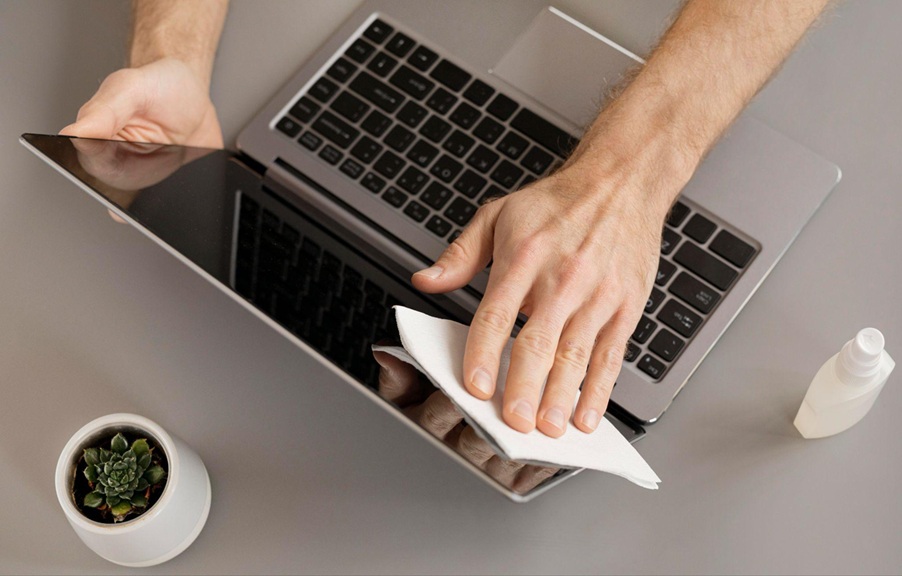
The screen is one of the most delicate parts of your device and requires special care. Avoid using paper towels, rough cloths, or any material that could scratch the screen. The best option is to use a soft microfiber cloth that doesn’t shed fibers and is gentle on sensitive surfaces.
Never use harsh chemicals. Avoid common household cleaning products or any solutions containing ammonia or alcohol, as they can damage the screen’s coatings. These products can remove the anti-reflective coating and leave permanent stains.
The correct technique is essential. Slightly dampen the microfiber cloth—never spray directly on the screen—to prevent excess liquid from seeping in and damaging internal components. Clean the screen with gentle, circular motions to avoid scratches.
For daily maintenance, a dry microfiber cloth is enough to remove dust and fingerprints. Only resort to cleaning solutions for stubborn stains, and always apply the liquid to the cloth, never directly onto the screen.
Your notebook can be given a second life: tips to revitalize your device
Many users give up on their device when it starts running slowly. However, small adjustments and changes can completely transform the user experience, resulting in faster startups and increased shock resistance.
Upgrade RAM for multitasking
Increasing from 4 to 16 GB of RAM significantly boosts performance across various tasks, from web browsing and office work to heavy-duty applications. If your device freezes when opening multiple browser tabs or programs, upgrading the RAM can be the solution.
Before proceeding with any upgrade, verify compatibility. Not all models allow changing these components, especially in modern ultrathin devices. Consult your device manual or seek technical advice.
Benefits of upgrading to SSD
Aside from speed, SSDs are storage devices based on flash memory, without moving parts, making them faster, quieter, and more durable than traditional hard drives. They also consume less power and produce less heat, benefiting your laptop’s battery life.
How to protect your notebook during transport
Daily transport poses some of the highest risks to your device. Using a backpack or hard case with padded compartments is essential to protect the chassis and screen from bumps and accidental drops.
Never carry your device loose in a regular bag or under your arm. Connectors and internal components can be damaged by sudden movements or excessive pressure. A quality case is a small investment compared to the cost of repairing a broken screen or replacing internal parts.
When storing your device in the backpack, ensure it is completely turned off or in deep sleep mode. Leaving it on inside a bag can cause overheating due to inadequate ventilation, potentially leading to permanent damage.

Knowing how to take care of your notebook doesn’t require advanced technical knowledge, just the consistent application of good practices. From avoiding soft surfaces that block airflow to following the 20-80% rule for the battery, every small action helps extend your technological investment’s lifespan.
