
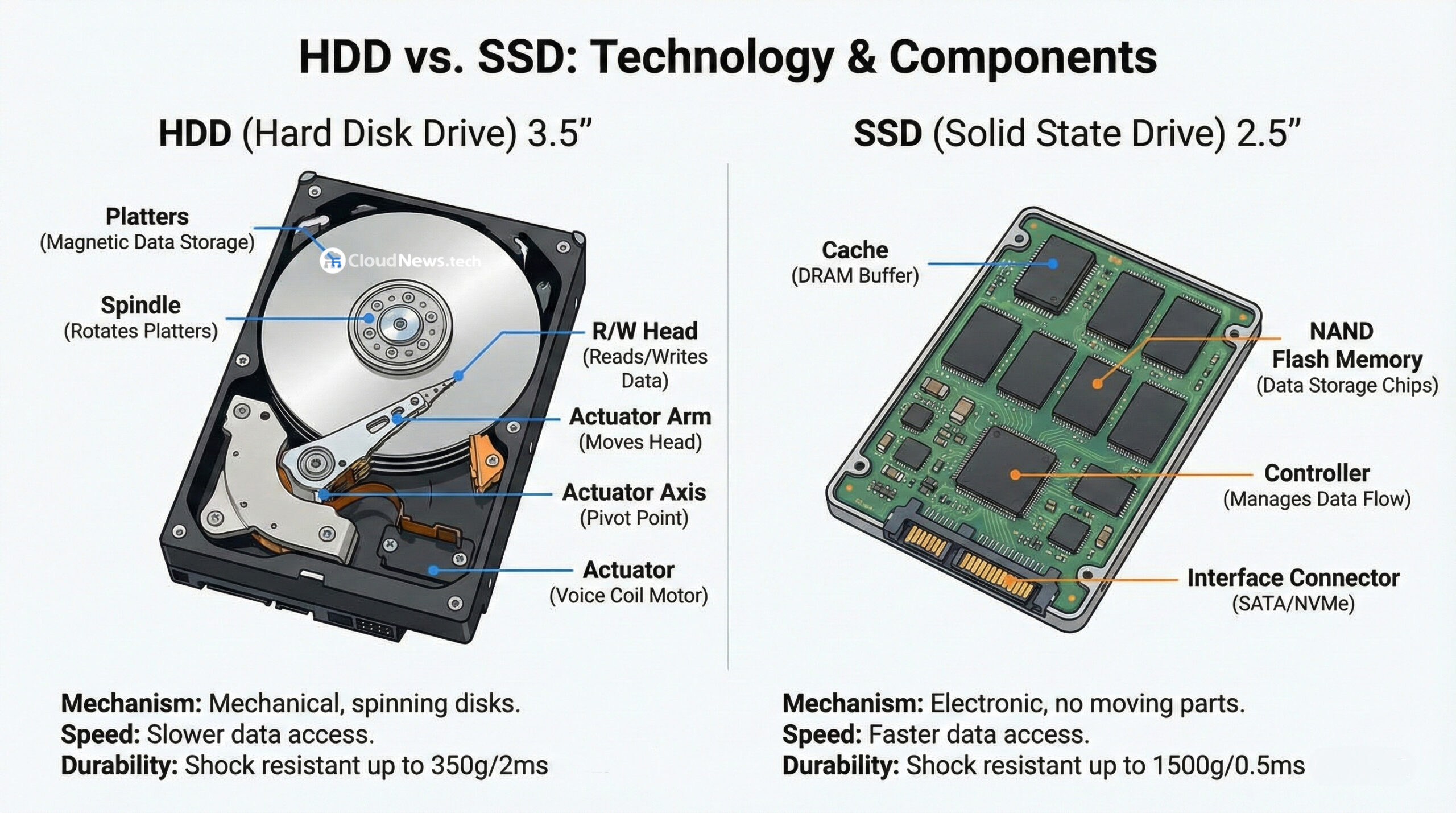
On almost any modern computer, server, or laptop, two acronyms dominate the user experience: HDD and SSD. At first glance, both are “discs” for storing data, but inside, they couldn’t be more different. This architectural difference explains why a device can take minutes to boot up… or do so in seconds.
When upgrading a PC, building a server, or choosing a laptop for work, understanding what each technology offers helps prevent costly mistakes.
What is an HDD: the veteran of data storage
The HDD (Hard Disk Drive) is the “classic” hard disk. Its operation relies on precision mechanics:
- Platters: multiple rotating disks coated with magnetic material.
- Spindle: the motor that spins these disks at high speed (5,400, 7,200 rpm, etc.).
- Read/write head: a tiny component that reads and writes data on the surface of the platters.
- Actuator arm: moves the head from one point to another on the disk.
Every time the system needs a file, the disk must physically position the head correctly. This mechanical search introduces latency and makes access slower than with an SSD.
Common advantages of an HDD:
- Very low cost per terabyte.
- Ideal for mass storage (backups, large files, multimedia).
- 成熟且标准化的技术。
Disadvantages:
- Slower read/write speeds, especially for random access.
- More sensitive to shocks and vibrations (moving parts).
- Higher energy consumption and more noise.
What is an SSD: solid-state memory
The SSD (Solid State Drive) operates very differently. It has no mechanical parts: everything is based on memory chips.
Inside, you find:
- NAND Flash memory: where data is stored.
- Controller: the “brain” that manages how data is written and read, cell wear, cache, etc.
- Cache memory (DRAM or pseudo-SLC): accelerates repeated or recent operations.
Since it does not rely on motors or heads, data access is almost instantaneous. That’s why an SSD can multiply perceived speed many times over compared to a system with the same processor and RAM.
Advantages of an SSD:
- Much faster read/write speeds and access times.
- Almost instant operating system boot-ups.
- Greater resistance to shocks and vibrations.
- Lower energy consumption, less heat, and quieter operation.
Disadvantages:
- Higher cost per terabyte, although the gap is closing.
- Some budget models may experience performance drops when very full or under heavy load.
Quick comparison: HDD vs SSD
| Feature | HDD (Mechanical hard drive) | SSD (Solid state) |
|---|---|---|
| Internal technology | Moving parts (disks, motor, head) | NAND memory chips, no moving parts |
| Boot speed | Slow | Very fast |
| Read/write | Slower, especially for random access | Up to 5–10 times faster in real-world use |
| Shock resistance | Low – sensitive to drops and vibrations | High – ideal for laptops |
| Noise | Hear spinning and access sounds | Completely silent |
| Power consumption | Higher | Lower |
| Price per TB | Cheaper | More expensive (but decreasing) |
| Typical use | Backups, large files, “cold storage” | OS, applications, databases, laptops |
When does it make sense to keep using HDDs
Despite the prominence of SSDs, HDDs haven’t disappeared, by any means. They remain very practical in specific scenarios:
- Backups and archiving: storing large volumes of data long-term at the lowest cost.
- Backup servers or “cold” storage: where speed isn’t critical, but space is.
- Multimedia libraries: movies, series, photos, and video projects that aren’t accessed constantly.
In these cases, cost per terabyte is key, and HDDs continue to be unbeatable.
Where SSDs shine and why they dramatically improve the experience
For everything involving fast system response, SSDs are the best choice:
- Operating system: installing Windows, Linux, or macOS on an SSD completely transforms the user experience. Boot times and login are reduced from tens of seconds to just a few.
- Work applications: office suites, browsers with many tabs, video or photo editors, programming IDEs… everything loads and responds quicker.
- Business laptops: less power consumption, less heat, more resistance to shocks and daily transport.
- Gaming systems: significantly shorter load times, better streaming of textures, and smoother open-world gameplay.
In short, wherever every second counts — productivity, professional environment, remote work, development, design — SSDs are not just a luxury, they’re almost a necessity.
What to choose today in a PC or laptop?
A common and recommended setup is:
- SSD (NVMe or SATA) for the OS and main programs.
- Additional HDD for heavy data and backups.
In laptops, where internal space is limited, many users opt for:
- Internal SSD for all critical tasks.
- External USB HDD or network drives (NAS) for data that doesn’t need to be always on hand.
For an average user today, choosing a new device with only an HDD is a step backward. The performance difference compared to an SSD is so significant that in many cases, switching from HDD to SSD rejuvenates a computer more than upgrading the CPU.
Conclusion: the drive remains the bottleneck… if you don’t choose wisely
For years, mechanical hard drives have been the main bottleneck in computers. The good news is that the solution is clear: for agility, productivity, and everyday comfort, an SSD is the logical choice. HDDs, rather than disappearing, remain as perfect allies for storing large amounts of data at low cost.
The ideal strategy isn’t to see HDDs and SSDs as rivals, but to use each where it best fits: SSD as the engine of the system, HDD as background storage. That’s where the balance between performance, cost, and capacity truly shows its value.