
In most IT departments, the same scene repeats before a delicate update: someone creates a snapshot of the virtual machine “just in case” and continues working with the feeling of being protected. Months later, when a datastore fails or a host becomes unusable, reality hits: that snapshot wasn’t a backup, and the organization discovers it doesn’t have a reliable backup.
In the era of widespread virtualization, understanding the difference between snapshot and backup remains a pending task. And it’s not a minor technical nuance: this distinction often determines business continuity.
What a snapshot really is in a virtual machine
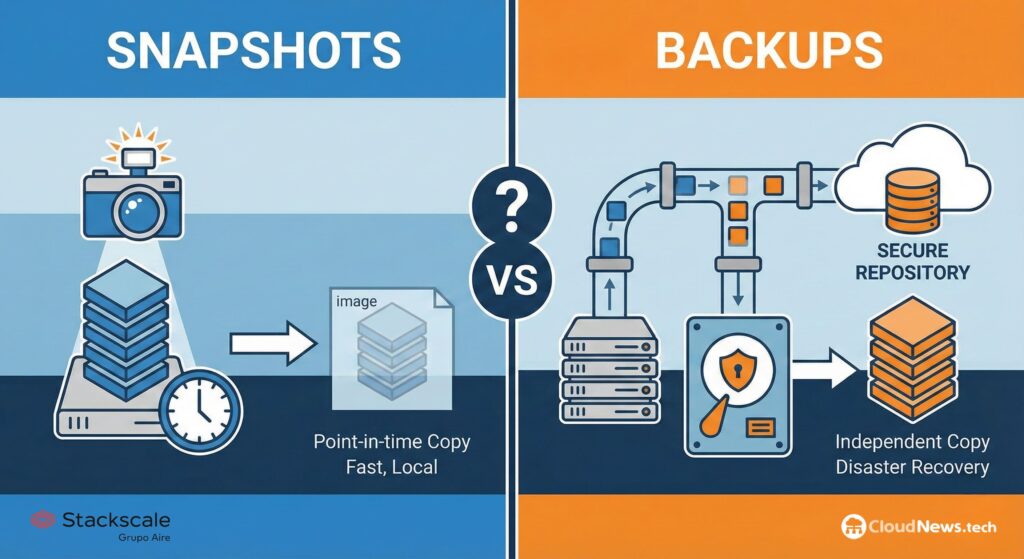
A snapshot is a photograph of the virtual machine’s state at a specific moment. It captures:
- The contents of its virtual disks.
- The hardware configuration and VM parameters.
- And, if configured that way, the memory and CPU state.
From the hypervisor’s perspective (VMware, Proxmox, Hyper-V, KVM, etc.), the original disk is set to read-only mode, and changes are written to one or more “delta” files. Reverting to a snapshot involves essentially discarding those changes and returning exactly to the starting point.
That’s why snapshots have become the perfect tool for:
- Testing operating system or critical application updates.
- Changing network or service parameters within the VM.
- Applying patches that could break compatibility.
However, this convenience comes with fine print.
Limitations many administrators still overlook
Although visually appearing as “restore points” in the hypervisor console, snapshots are not independent copies. If the datastore hosting these files becomes corrupted, if the host is lost, or if the base disk is deleted, the snapshot disappears with it.
Additionally:
- Stacking multiple snapshots degrades storage performance: each read and write operation must traverse more layers.
- Space consumption grows over time; an abandoned VM with old snapshots can fill an entire datastore.
- Manufacturers insist that they are temporary mechanisms, designed for hours or a few days at most, never to replace backups.
Put simply: a snapshot is an operational tool, very useful as a “safety net” during changes, but dangerous if relied upon as the sole protection strategy.
What a virtual machine backup genuinely is and why it’s the real insurance policy
Compared to a dependence-laden snapshot, a backup is a consistent and independent copy of data or the entire VM, stored outside the VM’s immediate lifecycle.
Backups can be performed in various ways:
- At file level, from within the guest operating system.
- At image level, copying virtual disks and VM configuration.
- Using dedicated virtualization backup solutions integrated with the hypervisor.
The key is where and how it’s stored:
- On a different storage array or server.
- In a secondary data center or hosting provider.
- In an external storage service or cloud.
And most importantly, with a clear retention and history policy (daily, weekly, monthly copies), increasingly including immutability options to withstand ransomware attacks.
What a backup is truly for
The goal is not just to “go back,” but to ensure business continuity in face of incidents such as:
- Accidental data deletion.
- File system or database corruption.
- Serious human errors in configuration.
- Hardware failures of the host or storage.
- Ransomware attacks encrypting entire infrastructure.
- Physical disasters at the data center.
Unlike a snapshot, a backup allows restoring a VM on another host, cluster, or even another provider, even if the original environment is no longer operational.
Use cases: when each makes sense
In practice, snapshots and backups don’t compete; they complement each other, provided each is used appropriately.
When to use snapshots
- Before updating the kernel or operating system on a critical VM.
- When deploying a new version of a business application.
- When making network or firewall changes within the VM that could disrupt services.
Recommended best practices:
- Keep snapshots only a few hours or, at most, a couple of days.
- Document who created it, when, and for what purpose.
- Delete it once the change is confirmed stable.
When to use backups
- When the organization must comply with business continuity policies or frameworks like ISO 27001, ENS, PCI-DSS, or GDPR.
- In environments with multiple clients or departments where data loss could have legal or financial impacts.
- For critical services: databases, ERPs, CRMs, corporate email, shared files, etc.
Basic good practices:
- Define a clear retention strategy (e.g., 7 daily copies, 4 weekly, and 12 monthly backups).
- Maintain at least one copy off the main host and cluster, preferably in a different physical location.
- Periodically test restoration: a backup is only valid once a successful restore has been verified.
The golden rule for any administrator: snapshot is not backup
There’s a simple way to tell if an organization is truly protected:
- If the so-called “copy” relies on the same storage and hypervisor, it’s not a backup.
- If the company can lose the host or datastore entirely and still restore the VM from elsewhere, that’s a true backup.
Snapshots allow faster work and less fear of change, but only a well-designed backup policy guarantees real protection and business continuity. In a world where nearly everything is virtualized, relying solely on snapshots is playing with fire.
Frequently asked questions about snapshots and backups in virtual machines
How long is it safe to keep an active snapshot in production?
Most manufacturers recommend using snapshots only temporarily: from a few hours up to a few days. Keeping them for weeks or months increases the risk of performance degradation and corruption during consolidation.
Can I consider a snapshot as part of my backup strategy?
It can serve as an additional measure during a change window, but it should never be the sole protection mechanism. A solid backup plan requires independent copies stored on another system with defined retention.
How often should I back up my virtual machines?
This depends on each service’s criticality and RPO (Recovery Point Objective). In many environments, daily copies of most VMs are standard, with more frequent backups (every few hours) for especially sensitive databases or applications.
How do I know if my virtual machine backups are truly recoverable?
The only reliable way is to perform regular restore tests: recover VMs in an isolated environment, verify they start correctly, and check that applications function as expected. Without these tests, the risk of discovering a backup failure during a crisis remains very high.